Find the Best External Hard Drive for MacBook Pro: Your Ultimate Guide
best external hard drive for macbook pro

Find the Best External Hard Drive for MacBook Pro: Your Ultimate Guide

Unlock unparalleled storage, speed, and reliability for your MacBook Pro with our top-rated external drive picks.

Explore Top Picks

Key Takeaways

  • ✓ Thunderbolt 3/4 offers the fastest speeds for modern MacBook Pros.
  • ✓ SSDs are significantly faster and more durable than HDDs.
  • ✓ Capacity needs depend on your workflow, from 1TB for general use to 8TB+ for professionals.
  • ✓ Bus-powered drives are more convenient for portability, while self-powered offer more sustained performance.
  • ✓ Compatibility with macOS (APFS formatting) is crucial for optimal performance.

How It Works

1
Identify Your Needs

Determine required storage capacity, desired speed (SSD vs. HDD), and primary use case (backup, media editing, gaming).

2
Choose Connection Type

Select the appropriate port for your MacBook Pro (Thunderbolt 3/4 for newer models, USB-C/3.0 for older ones) to ensure maximum compatibility and speed.

3
Select Form Factor & Brand

Decide between portable or desktop, rugged or sleek. Research reputable brands known for reliability and customer support.

4
Format for macOS

Upon purchase, format the drive to APFS or Mac OS Extended (Journaled) using Disk Utility for seamless integration and optimal performance with your MacBook Pro.

Why Your MacBook Pro Needs an External Storage Solution
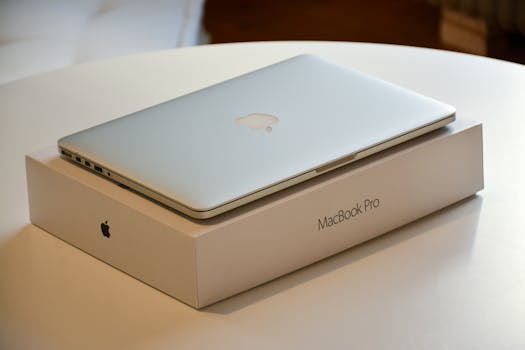
A MacBook Pro laptop placed on its original packaging on a white indoor table. Photo: John (Giannis) Tekeridis / Pexels
Even the most powerful MacBook Pros can feel constrained by their internal storage. Apple's integrated SSDs, while incredibly fast, come at a premium, often leading users to opt for lower capacities at the point of purchase. Over time, high-resolution photos, 4K video projects, extensive music libraries, and ever-growing software installations quickly consume precious gigabytes. This isn't just about running out of space; a full internal drive can significantly degrade your MacBook Pro's performance, slowing down applications, extending boot times, and making everyday tasks feel sluggish. An external hard drive isn't just an accessory; it's an essential extension of your MacBook Pro's capabilities, offering a lifeline for data management and performance preservation. It liberates your internal drive, allowing it to focus on running macOS and essential applications, while offloading less frequently accessed or large files to dedicated external storage. This strategic approach not only enhances your system's responsiveness but also provides a crucial layer of data redundancy. Imagine losing years of creative work or cherished memories due to an unforeseen internal drive failure. An external drive, particularly when used for regular backups with Time Machine, acts as your digital safety net, safeguarding your invaluable data against unexpected events. Furthermore, for creative professionals who constantly juggle massive project files, an external drive provides the flexibility to work on different machines or collaborate with others without transferring colossal amounts of data back and forth over networks. It becomes a portable workspace, allowing you to pick up where you left off, anywhere. The right external drive can transform your workflow, making file transfers faster, projects more manageable, and your overall computing experience smoother and more efficient. Understanding these fundamental benefits is the first step in choosing the best external hard drive for MacBook Pro, ensuring you invest in a solution that truly meets your evolving digital demands. Beyond mere capacity, consider the performance implications; a slow external drive can negate the benefits of offloading data, making responsiveness worse. This is why the type of drive (SSD vs. HDD) and its connection interface (Thunderbolt vs. USB) are paramount considerations, directly impacting your daily workflow and overall satisfaction.

SSD vs. HDD: Choosing the Right Drive Type for Your MacBook Pro
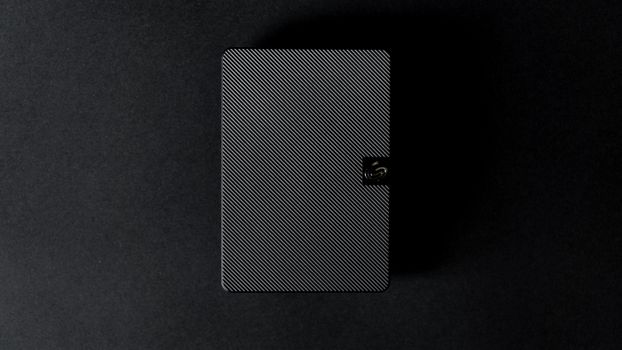
Close-up of a sleek external hard disk against a black backdrop, showcasing modern technology design. Photo: Uwukuri Emery / Pexels
When it comes to external storage for your MacBook Pro, the fundamental choice boils down to Solid State Drives (SSDs) and Hard Disk Drives (HDDs). Each offers distinct advantages and disadvantages, making the 'best' choice highly dependent on your specific needs and budget. SSDs represent the pinnacle of modern storage technology. Lacking any moving parts, they are incredibly fast, offering read and write speeds that can be several times greater than even the fastest HDDs. This speed translates into significantly reduced file transfer times, quicker application loading, and a much more responsive experience when working with large files directly from the external drive, such as editing 4K video or running virtual machines. Their solid-state nature also makes them far more durable and resistant to physical shock, a critical factor for portable drives that might be jostled in a bag. However, this superior performance and durability come at a higher price per gigabyte. For example, a 2TB external SSD will typically cost significantly more than a 2TB external HDD. HDDs, on the other hand, are the traditional workhorses of storage. They utilize spinning platters and read/write heads to store and retrieve data. Their primary advantage is cost-effectiveness; you can get a much larger storage capacity for the same price as a smaller SSD. This makes HDDs an excellent choice for archival storage, Time Machine backups, or storing large media libraries where raw speed isn't the absolute top priority. The drawbacks include slower speeds compared to SSDs, which can lead to noticeable delays when transferring very large files or accessing data frequently. Furthermore, their mechanical components make them more susceptible to damage from drops or impacts, making rugged enclosures a wise investment for portable HDDs. For a MacBook Pro user, if your primary goal is to expand storage for active projects, run demanding applications, or achieve the fastest possible backups, an external SSD is the clear winner. Its speed will complement your MacBook Pro's internal SSD, maintaining a high-performance workflow. If, however, you need vast amounts of storage for cold storage, media archives, or less frequently accessed backups, and budget is a significant constraint, an external HDD offers excellent value. Many users opt for a hybrid approach: a smaller, faster external SSD for current projects and a larger, more affordable external HDD for long-term archiving. This strategy balances speed with cost-efficiency, providing a comprehensive storage solution tailored to diverse needs. Understanding these core differences is essential to making an informed decision about the best external hard drive for MacBook Pro, ensuring your investment aligns with your performance expectations and budget.

Connectivity and Compatibility: Ensuring Optimal Performance with Your MacBook Pro
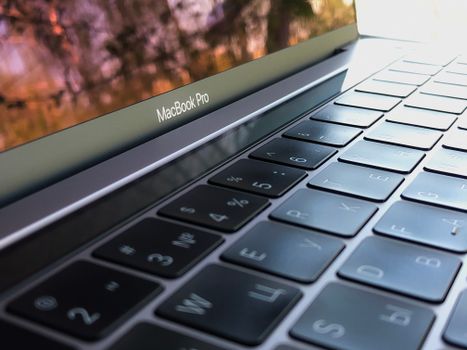
A detailed close-up of a MacBook Pro keyboard, highlighting keys and reflection. Photo: Кирилл Абрамов / Pexels
The interface you choose for your external hard drive is as crucial as the drive type itself, directly dictating the maximum transfer speeds and overall compatibility with your MacBook Pro. Modern MacBook Pros primarily feature Thunderbolt 3 and Thunderbolt 4 ports, which are physically identical to USB-C ports but offer significantly higher bandwidth. Thunderbolt 3/4 can achieve theoretical speeds of up to 40Gbps, making it the fastest option available for external storage. This incredible speed is particularly beneficial for external SSDs, allowing them to perform at their peak, minimizing bottlenecks during large file transfers, video editing, or running demanding applications directly from the drive. When selecting an external drive, look for models that explicitly state Thunderbolt 3 or Thunderbolt 4 compatibility for the best experience with newer MacBook Pros. These ports also support power delivery, meaning some bus-powered Thunderbolt drives won't require an additional power adapter, enhancing portability. While USB-C ports on older MacBook Pros (or through adapters) might look similar, their performance can vary. USB 3.1 Gen 2 (often simply called USB-C) offers speeds up to 10Gbps, which is still very respectable for most external SSDs and more than sufficient for any external HDD. USB 3.0 (USB 3.1 Gen 1 or USB 3.2 Gen 1) typically provides up to 5Gbps. While slower than Thunderbolt, these USB standards are widely compatible and offer a more budget-friendly alternative for external drives, especially HDDs where the drive's mechanical limitations would bottleneck even a Thunderbolt connection. It's important to note that a Thunderbolt 3/4 port on your MacBook Pro is backward compatible with USB-C devices, but a USB-C port is not forward compatible with Thunderbolt-only devices. Always check your MacBook Pro's specifications to confirm its port types. Beyond physical connectivity, software compatibility is vital. Ensure the external drive is formatted correctly for macOS. The preferred file system for modern macOS versions is APFS (Apple File System), which offers superior performance, encryption, and reliability compared to older formats like HFS+ (Mac OS Extended Journaled). While Windows-formatted drives (NTFS) can be read by macOS, writing to them often requires third-party software. For maximum compatibility across both macOS and Windows, ExFAT is a viable option, though it lacks some of the advanced features and performance optimizations of APFS. Initializing and formatting your new drive using macOS's Disk Utility is a simple process that ensures seamless integration and optimal performance. By carefully considering both the physical connection type and the file system, you can ensure your chosen external drive delivers the best possible performance and reliability for your MacBook Pro, enhancing your overall digital workflow and making it a truly best external hard drive for MacBook Pro solution.

Essential Tips for Maximizing Your External Drive's Lifespan and Performance
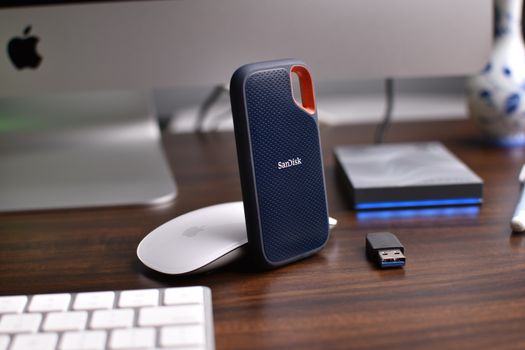
Close-up of a desk setup featuring external hard drives, mouse, and USB stick. Photo: Avinash Kumar / Pexels
Investing in a quality external hard drive is only half the battle; proper care and usage are crucial for maximizing its lifespan and ensuring consistent performance with your MacBook Pro. Here are some essential tips: * **Always Eject Safely:** This is perhaps the most critical rule. Never unplug your external drive without properly ejecting it first through macOS Finder or Disk Utility. Abrupt disconnections can corrupt data, damage the drive's file system, or even lead to physical damage over time, especially for HDDs. * **Keep it Cool:** Overheating can significantly shorten the life of any electronic device, including external drives. Ensure your drive has adequate ventilation, especially during prolonged, intensive use. Avoid placing it in direct sunlight or enclosed spaces. * **Regular Backups:** While an external drive can serve as a backup for your MacBook Pro, the drive itself isn't immune to failure. Consider a 3-2-1 backup strategy: three copies of your data, on two different types of media, with one copy offsite. This might involve cloud storage or a second external drive. * **Proper Formatting:** As discussed, ensure your drive is formatted to APFS (for SSDs on macOS High Sierra or newer) or Mac OS Extended (Journaled) for optimal compatibility and performance with your MacBook Pro. Reformat if necessary using Disk Utility. * **Firmware Updates:** Occasionally, drive manufacturers release firmware updates that can improve performance, stability, or fix bugs. Check the manufacturer's website periodically for your specific model. * **Physical Protection:** For portable drives, consider a protective case, especially if you travel frequently. Drops are a leading cause of external drive failure, particularly for HDDs. * **Avoid Filling to Capacity:** While external drives offer vast storage, try to avoid filling them to 100% capacity. Leaving a small percentage of free space can help maintain optimal performance, particularly for SSDs which utilize over-provisioning. * **Use the Right Cable:** Always use the high-quality, manufacturer-provided cable or a certified replacement. Cheap or incorrect cables can lead to slower transfer speeds, connection drops, or even power issues. By adhering to these practices, you can significantly extend the life of your external hard drive and ensure it remains a reliable and high-performing companion to your MacBook Pro for years to come. These proactive measures are key to getting the most out of your investment in the best external hard drive for MacBook Pro.

Comparison

FeatureSamsung T7 Shield (Best Portable SSD)SanDisk Extreme Pro Portable SSD V2 (Premium SSD)WD My Passport for Mac (Best Portable HDD)
Capacity Range1TB - 4TB1TB - 4TB1TB - 5TB
InterfaceUSB 3.2 Gen 2 (USB-C)USB 3.2 Gen 2x2 (USB-C)USB 3.0 (USB-A compatible)
Max Read Speed1,050 MB/s2,000 MB/s~120 MB/s
Max Write Speed1,000 MB/s2,000 MB/s~110 MB/s
DurabilityIP65 Water/Dust, 3m DropIP55 Water/Dust, 2m DropStandard (no official rating)
PowerBus-poweredBus-poweredBus-powered
Price/GB (approx.)MediumHighLow
Best ForGeneral use, prosumer, ruggedProfessionals, fastest transfersMass storage, backups, budget

What Readers Say

"The Samsung T7 Shield has been a game-changer for my MacBook Pro. The transfer speeds are incredible, especially when moving large video files for my editing projects. It's rugged design also gives me peace of mind when I'm on the go, truly the best external hard drive for MacBook Pro users like me."

Sarah J. · Austin, TX

"I upgraded to the SanDisk Extreme Pro Portable SSD V2 for my photography workflow on my MacBook Pro, and the difference is night and day. Importing thousands of RAW files is lightning fast, and I can edit directly from the drive without any lag. It's worth every penny for the performance."

David L. · Seattle, WA

"My old MacBook Pro was constantly running out of space, but with the WD My Passport for Mac, I've cleared up so much room. Time Machine backups are a breeze, and I have all my documents and media archived safely. It's a reliable, cost-effective solution for anyone needing extra space."

Emily R. · Boston, MA

"While the Western Digital My Passport isn't the fastest external drive, its massive capacity for the price makes it an excellent choice for my MacBook Pro's Time Machine backups. It's quiet and works flawlessly with macOS, though I do wish it had a USB-C native cable."

Mark T. · Denver, CO

"As a music producer, having a fast, reliable external SSD is non-negotiable for my MacBook Pro. The Sabrent Rocket XTRM-Q (Thunderbolt 3) has been phenomenal. Zero latency when loading samples and projects, and the build quality feels premium. It keeps up with my demanding workflow perfectly."

Jessica M. · Los Angeles, CA

Frequently Asked Questions

What is the best file format for an external hard drive for MacBook Pro?

For optimal performance and compatibility with modern macOS versions, the APFS (Apple File System) format is recommended, especially for SSDs. If your MacBook Pro runs an older macOS (pre-High Sierra) or if you need compatibility with Windows, Mac OS Extended (Journaled) or ExFAT are suitable alternatives, respectively.

Will an external hard drive slow down my MacBook Pro?

No, an external hard drive, especially a fast SSD connected via Thunderbolt, should not slow down your MacBook Pro. In fact, by offloading large files and applications from your internal drive, it can often improve your MacBook Pro's overall performance by freeing up precious internal storage space.

How do I connect an external hard drive to my MacBook Pro?

Most modern external drives connect via USB-C or Thunderbolt 3/4. Simply plug the drive's cable into the corresponding port on your MacBook Pro. For older drives with USB-A connectors, you might need a USB-C to USB-A adapter or hub.

How much storage capacity do I need for my MacBook Pro?

The ideal capacity depends on your usage. For general backups and light media storage, 1TB-2TB might suffice. Creative professionals dealing with 4K video or extensive photo libraries should consider 4TB or more. It's often wise to buy slightly more than you think you need to accommodate future growth.

Is an SSD or HDD better for my MacBook Pro?

For speed, durability, and responsiveness, an SSD (Solid State Drive) is generally better for active projects, applications, and frequent data access. HDDs (Hard Disk Drives) are more cost-effective for large-capacity archival storage and Time Machine backups where raw speed is less critical.

Can I use an external hard drive for Time Machine backups?

Yes, an external hard drive is an excellent solution for Time Machine backups. macOS will prompt you to use a newly connected drive for Time Machine, or you can manually select it in System Settings (or System Preferences). Both SSDs and HDDs work well for this purpose.

Are rugged external drives necessary for MacBook Pro users?

If you frequently travel with your MacBook Pro and external drive, or work in environments where drops and spills are a risk, a rugged external drive with IP ratings for water, dust, and shock resistance can provide invaluable protection and peace of mind.

What's the difference between Thunderbolt and USB-C for external drives?

While they share the same physical connector, Thunderbolt 3/4 offers significantly higher bandwidth (up to 40Gbps) compared to USB-C (which can vary from 5Gbps to 20Gbps depending on the USB standard). Thunderbolt is ideal for maximizing the speed of external SSDs, especially for demanding tasks.

Choosing the best external hard drive for your MacBook Pro is a strategic decision that impacts your productivity, data security, and creative freedom. By considering speed, capacity, durability, and connectivity, you can find the perfect companion to expand your digital workspace. Invest wisely and unlock the full potential of your MacBook Pro today.

Topics: best external hard drive for macbook promacbook pro storage expansionexternal SSD for macbookmacbook pro backup driveportable mac storage
Leo List
Brampton weed
Adultwork