Mastering Your Home Network: How to Set Up a Mesh WiFi System
how to set up a mesh wifi system

Mastering Your Home Network: How to Set Up a Mesh WiFi System

Transform your home's internet experience with unparalleled coverage and speed by following our expert setup guide.

Get Started Now

Key Takeaways

  • ✓ Mesh WiFi systems use multiple nodes to create a single, unified network.
  • ✓ They eliminate dead zones and provide consistent, strong WiFi signals throughout your home.
  • ✓ Setup typically involves a main router node and satellite nodes placed strategically.
  • ✓ Most systems are managed easily through a dedicated smartphone app.
  • ✓ Placement of satellite nodes is crucial for optimal performance.

How It Works

1
Unboxing & Initial Placement

Unpack all components and identify the main router node. Place it near your modem in a central location for best initial connectivity.

2
Connect Main Node to Modem

Connect the main mesh router node to your existing internet modem using an Ethernet cable. Power on both devices.

3
App-Guided Setup

Download the manufacturer's app on your smartphone and follow the on-screen instructions. This guides you through connecting the main node and adding satellites.

4
Satellite Node Placement & Testing

Position satellite nodes strategically to extend coverage, ensuring they are within range of each other. Use the app's signal strength indicator to optimize placement and test network performance.

Understanding Mesh WiFi Technology and Its Benefits
A close-up view of a motherboard and electronic components against a detailed chalkboard backdrop. Photo: Mikhail Nilov / Pexels
Before diving into how to set up a mesh WiFi system, it's crucial to understand what mesh WiFi is and why it's a superior solution for many modern homes. Traditional WiFi setups typically consist of a single router, which broadcasts a signal from a central point. While effective for smaller spaces, this often leads to 'dead zones' or areas with weak, inconsistent coverage, especially in larger homes, multi-story residences, or those with architectural obstructions like thick walls. Mesh WiFi, on the other hand, revolutionizes this by using multiple access points, or 'nodes,' that work together to create a single, unified network. Imagine a team of WiFi broadcasters, rather than a single player trying to cover the entire field. Each node communicates with the others, forming a 'mesh' that blankets your home in strong, consistent internet coverage. This means you can walk from your living room to your bedroom, or even out to your patio, without experiencing drops in signal or having your device switch between different networks. The system intelligently routes your connection through the strongest available node, providing a seamless experience. The primary benefit is the elimination of dead zones, which are a common frustration for many homeowners. Instead of relying on signal extenders that often create separate networks and can halve bandwidth, mesh systems offer a single network name (SSID) and a smooth transition between nodes. This not only improves coverage but also enhances overall network stability and speed, particularly for bandwidth-intensive activities like 4K streaming, online gaming, and video conferencing. Furthermore, most mesh systems are designed with ease of use in mind. Their companion apps simplify the setup process, allow for remote management, and often include advanced features like parental controls, guest networks, and security protocols. This user-friendly approach makes them accessible even for those who aren't tech-savvy. For anyone looking to upgrade their home network and ensure reliable, fast internet across every corner of their property, understanding the foundational technology of mesh WiFi is the first step towards a better connected home. It's a significant leap from traditional router setups, offering a robust and scalable solution for today's connected lifestyle. Explore the advantages of smart home technology to see how mesh WiFi can integrate with other devices.

Choosing the Right Mesh WiFi System for Your Home

Person connecting a smartphone to a wireless speaker indoors, foreground focus. Photo: Burst / Pexels
Selecting the appropriate mesh WiFi system is a critical precursor to a successful installation. With a burgeoning market, various brands and models offer different features, performance levels, and price points. Your choice should be informed by several key factors to ensure it meets your specific needs and budget. First, consider the size of your home and its layout. Manufacturers typically provide coverage estimates for their systems, often expressed in square feet. For a small apartment, a two-node system might suffice, while a large, multi-story house or a home with many walls might require a three-pack or even additional nodes. Be realistic about your home's dimensions and any potential obstructions that could impede the signal. The number of devices you typically connect to your network is another crucial factor. If your household has numerous smartphones, tablets, smart TVs, gaming consoles, and smart home gadgets, you'll need a system capable of handling a high volume of simultaneous connections without compromising speed. Look for systems that support the latest WiFi standards, such as Wi-Fi 6 (802.11ax) or even Wi-Fi 6E, which offer improved efficiency and capacity. These newer standards are particularly beneficial in dense network environments. Speed requirements are also paramount. If you have a gigabit internet plan, you'll want a mesh system that can deliver those speeds across your network. Check the system's maximum theoretical throughput and consider systems with tri-band capabilities. Tri-band systems dedicate one band solely for backhaul communication between the nodes, which can significantly improve performance, especially when multiple devices are active. Dual-band systems, while often more affordable, share their bands between client devices and backhaul, potentially leading to slower speeds. Ease of setup and management is another important consideration. Most modern mesh systems boast user-friendly mobile apps that guide you through the installation process and allow for easy management of network settings, parental controls, and guest networks. Read reviews to gauge the real-world experience of other users regarding setup simplicity. Finally, think about additional features that might be important to you, such as built-in cybersecurity, ethernet ports on satellite nodes for wired connections, or compatibility with voice assistants. Brands like Eero, Google Nest WiFi, Netgear Orbi, and TP-Link Deco are popular choices, each with their own strengths. Researching specific models and comparing their specifications against your home's unique demands will help you make an informed decision that ensures optimal performance and satisfaction long after you learn how to set up a mesh WiFi system.

Step-by-Step Guide: How to Set Up a Mesh WiFi System for Optimal Performance
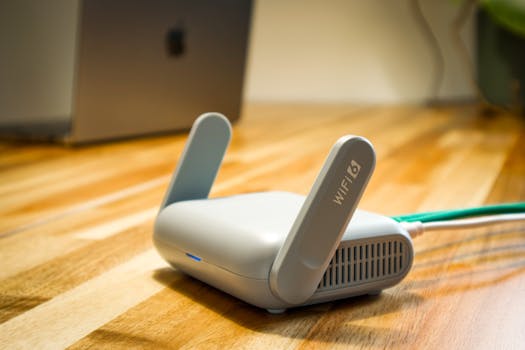
A sleek WiFi 6 router with antennas and cable on a wooden desk, perfect for modern home networks. Photo: Pascal 📷 / Pexels
Setting up a mesh WiFi system might seem daunting at first glance, but with a clear, step-by-step approach, it’s a straightforward process that most users can complete in under an hour. This detailed guide will walk you through each stage, ensuring you achieve optimal performance and whole-home coverage. **1. Unbox and Identify Components:** Start by unboxing your mesh WiFi system. You'll typically find a main router unit (sometimes designated as the 'primary' or 'gateway' node) and one or more satellite units (often called 'extenders' or 'beacons'). Also, locate the power adapters for each unit and at least one Ethernet cable. Familiarize yourself with the units; some may look identical, while others have distinct designs for the main router. **2. Choose the Primary Node Location:** The main router node should be placed in a central location, ideally near your existing internet modem. Avoid placing it in enclosed spaces like cabinets or behind large electronic devices, as these can interfere with the signal. A raised, open area is usually best. Ensure it’s within reach of a power outlet. **3. Connect the Primary Node to Your Modem:** Power off your existing modem. Connect one end of the Ethernet cable to the WAN (or Internet) port on your mesh system's primary node. Connect the other end of the Ethernet cable to an available LAN port on your modem. If you have a separate router and modem, you might need to disconnect your old router first. Power on your modem, wait for it to fully boot up (indicated by stable internet lights), and then power on your mesh primary node. **4. Download the Manufacturer's App:** While the primary node is booting, download the dedicated mobile app for your mesh system from your smartphone's app store (e.g., Apple App Store or Google Play Store). Most major mesh systems, like Eero, Google Nest WiFi, and Netgear Orbi, rely heavily on their apps for guided setup. **5. Follow In-App Setup Instructions:** Open the app and create an account or log in if prompted. The app will usually detect your new mesh system and guide you through the initial configuration. This typically involves: * **Naming your new WiFi network (SSID):** Choose a memorable name. * **Creating a strong password:** This is crucial for network security. * **Connecting your smartphone to the new WiFi network:** The app will instruct you to switch your phone's WiFi connection to the newly created network. **6. Place and Connect Satellite Nodes:** Once the primary node is set up, the app will guide you on how to add the satellite nodes. The key here is strategic placement. Place satellite nodes roughly halfway between the primary node and the areas of your home that need improved coverage. Ensure they are within range of another node (either the primary or another satellite) to form a strong mesh. The app often provides a signal strength indicator to help you find the optimal spots. Look for a 'good' or 'strong' signal reading. Avoid placing nodes too close to each other (as this offers minimal benefit) or too far apart (where the signal becomes weak). Power on each satellite node as you place it. The app will confirm when each satellite node has successfully connected to the mesh network. **7. Test Your New Network:** After all nodes are connected, perform a speed test in various locations throughout your home, especially in areas that previously had weak signals. Walk around with your smartphone or laptop, observing the WiFi signal strength and ensuring seamless transitions between nodes. Most mesh apps also offer built-in network health checks or speed tests. **8. Advanced Configuration (Optional):** Once your basic setup is complete, you can explore the app for advanced settings such as: * **Guest Network setup:** Provide internet access to guests without sharing your main password. * **Parental Controls:** Manage internet access times and block inappropriate content for children. * **Port Forwarding:** Necessary for certain online games or applications. * **Firmware Updates:** Regularly check for and install updates to ensure security and optimal performance. By carefully following these steps, you will successfully learn how to set up a mesh WiFi system, transforming your home into a uniformly connected environment. For further optimization, consider exploring advanced networking tips to fine-tune your connection.

Common Mistakes to Avoid When Setting Up Your Mesh WiFi

High-resolution close-up of smartphone interface showing control center icons. Photo: Brett Jordan / Pexels
While mesh WiFi systems are designed for user-friendly installation, certain common mistakes can hinder their performance and negate the benefits you're seeking. Being aware of these pitfalls can save you time and frustration, ensuring your home network operates at its best. 1. **Improper Placement of Nodes:** This is arguably the most frequent error. Placing nodes too far apart will result in weak backhaul connections between them, leading to slow speeds and dropped signals. Conversely, placing them too close together creates redundant coverage without extending the network effectively. The goal is to create overlapping coverage zones where each satellite node has a strong connection to at least one other node. Use the system's mobile app to check signal strength between nodes during placement. Avoid placing nodes behind large appliances (refrigerators, microwaves), in closed cabinets, or near other signal-emitting devices like cordless phones, which can cause interference. 2. **Not Disabling Your Old Router's WiFi:** If you're replacing an existing router with your new mesh system, it's crucial to disable the WiFi function on your old router (if it's still acting as a modem/router combo). Running two WiFi networks simultaneously can cause interference and confusion for your devices, which might try to connect to the weaker, older signal. In some cases, you might need to put your old modem/router into 'bridge mode' to prevent double NAT issues. 3. **Ignoring Firmware Updates:** Manufacturers frequently release firmware updates that improve performance, add new features, and patch security vulnerabilities. Neglecting these updates means you're not getting the most out of your system and could be leaving your network exposed. Most mesh systems allow for automatic updates, but it's wise to check periodically through the app. 4. **Overlooking Ethernet Backhaul Opportunities:** While mesh systems are known for their wireless capabilities, many high-end systems offer the option for Ethernet backhaul. This means you can connect satellite nodes to the main router (or other satellites) using an Ethernet cable. If your home is wired with Ethernet, utilizing this feature can provide a significantly faster and more reliable connection between nodes, freeing up wireless bandwidth for your devices. 5. **Not Utilizing Parental Controls and Security Features:** Modern mesh systems come equipped with robust parental controls and enhanced security features. Failing to configure these means you're missing out on vital protection for your family and network. Set up content filters, time limits, and activate any built-in antivirus or threat detection services. 6. **Using the Same SSID/Password as Old Network (without full transition):** While some systems allow you to reuse your old network name and password for convenience, ensure that your old network is fully disabled first. If both are active, your devices might get confused. If you're starting fresh, a new, strong password is always recommended. By being mindful of these common mistakes, your journey on how to set up a mesh WiFi system will be much smoother and result in a highly performant and reliable home network.

Comparison

FeatureBest Overall (e.g., Eero Pro 6E)Budget-Friendly (e.g., TP-Link Deco M5)High Performance (e.g., Netgear Orbi RBKE963)
WiFi StandardWiFi 6EWiFi 5 (AC)WiFi 6E
BandsTri-Band (2.4, 5, 6GHz)Dual-Band (2.4, 5GHz)Quad-Band (2.4, 5, 5, 6GHz)
Coverage (3-pack)Up to 6,000 sq ftUp to 5,500 sq ftUp to 9,000 sq ft
Ethernet Ports per Node2-3 GigE2 GigE4 GigE + 1 10GigE
Dedicated Backhaul✓ (6GHz band)✗ (shared 5GHz)✓ (Dedicated 5GHz + 6GHz)
Advanced SecuritySubscription-basedBasic includedSubscription-based
Price Range$$$$$$$$

What Readers Say

"I followed this guide on how to set up a mesh WiFi system, and my dead zones are GONE! The instructions were so clear, and I had my Google Nest WiFi running perfectly in less than 30 minutes. Amazing difference for my smart home devices."

Sarah J. · Austin, TX

"Finally, consistent WiFi in my two-story house. This article made the Eero setup process incredibly simple, especially the tips on node placement. My kids can stream in their rooms without buffering now."

Mark D. · Orlando, FL

"After reading this, I bought a TP-Link Deco system. The step-by-step guidance on how to set up a mesh WiFi system was invaluable. My home office now gets full bars, and my video calls are crystal clear."

Jessica L. · Seattle, WA

"The guide was mostly excellent, though I initially struggled with disabling my old router's WiFi. Once I figured that out, the Netgear Orbi set up smoothly. Great advice on avoiding common mistakes."

David R. · Chicago, IL

"As a remote worker, reliable WiFi is non-negotiable. This article's advice on how to set up a mesh WiFi system helped me optimize my new Eero Pro 6E, even in my backyard office. It's a game-changer for productivity."

Emily C. · Denver, CO

Frequently Asked Questions

What is the primary advantage of a mesh WiFi system over a traditional router?

The primary advantage of a mesh WiFi system is its ability to provide seamless, whole-home coverage by eliminating dead zones and creating a single, unified network. Unlike traditional routers that rely on a single broadcast point, mesh systems use multiple nodes that communicate with each other to extend strong, consistent WiFi signals to every corner of your home, allowing devices to roam freely without losing connection or experiencing slowdowns.

Will a mesh WiFi system make my internet faster?

A mesh WiFi system primarily improves the *coverage* and *consistency* of your existing internet speed, rather than inherently making your internet faster than your ISP plan. However, by eliminating dead zones and providing a stronger signal to your devices, it can *feel* faster because you'll experience less buffering, fewer drops, and more reliable performance across your home, effectively allowing you to utilize the full speed of your internet plan more consistently.

How do I choose the best placement for my mesh satellite nodes?

To choose the best placement for your mesh satellite nodes, aim to position them roughly halfway between your main router node and the areas needing better coverage. Ensure each satellite node is within a strong signal range of another node (either the primary or another satellite). Most mesh systems' mobile apps offer a signal strength indicator to help you optimize placement, guiding you to spots that ensure robust backhaul communication between nodes for optimal performance.

Are mesh WiFi systems expensive?

The cost of mesh WiFi systems varies widely, ranging from budget-friendly dual-band options around $100-$200 for a basic two-pack, to high-performance tri-band or Wi-Fi 6E systems that can exceed $500-$1000 for multi-packs. While the initial investment might be higher than a single traditional router, the value comes from superior coverage, reliability, and ease of management, often justifying the cost for larger homes or those with extensive smart device ecosystems.

How does a mesh WiFi system compare to a WiFi extender?

A mesh WiFi system is generally superior to a WiFi extender. Extenders often create a separate network name and can halve your bandwidth as they rebroadcast the signal. Mesh systems, conversely, create a single, unified network (one SSID) and intelligently route traffic between multiple nodes, offering seamless roaming and more consistent speeds throughout your home without the performance degradation commonly associated with extenders.

Who should consider using a mesh WiFi system?

Anyone experiencing WiFi dead zones, slow speeds in certain rooms, or inconsistent connectivity in a larger home (over 1,500 sq ft), multi-story residence, or a home with many walls or obstructions should consider a mesh WiFi system. It's also ideal for households with numerous connected devices, heavy streaming or gaming users, or those who simply desire a more reliable and easy-to-manage whole-home internet experience.

Are mesh WiFi systems secure?

Most modern mesh WiFi systems come with robust security features, often including WPA3 encryption, automatic firmware updates, and built-in threat detection or antivirus protection (sometimes subscription-based). They are generally considered more secure than older traditional routers, especially when kept updated. Always ensure you set a strong, unique password for your network during setup.

What is the future trend for mesh WiFi technology?

The future trend for mesh WiFi technology points towards wider adoption of newer standards like Wi-Fi 7 (802.11be) for even faster speeds and lower latency, increased integration with smart home ecosystems, more advanced AI-driven network optimization and security features, and greater emphasis on ease of use and seamless installation. We can expect more sophisticated backhaul options and enhanced capacity to handle the ever-growing number of connected devices.

Ready to transform your home's internet experience? By understanding how to set up a mesh WiFi system and following our expert guidance, you can eliminate frustrating dead zones and enjoy seamless, high-speed connectivity across every inch of your property. Take the leap and upgrade to a mesh network today for a truly connected home.

Topics: how to set up a mesh wifi systemmesh wifi installationwhole-home wifieliminate wifi dead zonesbest mesh wifi systems
Leo List

DK Escorts LU Escorts AT Escorts SE Escorts FI Escorts CH Escorts DE Escorts HR Escorts IE Escorts GR Escorts CZ Escorts NO Escorts BE Escorts FR Escorts SI Escorts IL Escorts NL Escorts PL Escorts HU Escorts ES Escorts IT Escorts PT Escorts SK Escorts RO Escorts ZA Escorts UY Escorts US Escorts UK Escorts NZ Escorts AU Escorts
Brampton weed
Adultwork EstrelaBet Vai de Bet R7 Bet Betão Galera Bet Rainbet Bet9ja Shop SportyBet BetKing Sisal Loto Foot Hollywoodbets YesPlay Odibets RushBet Jugabet BetWarrior BetCity MSport betPawa Fortebet