✓ Updating drivers can fix bugs, improve performance, and enable new features.
✓ There are three main manufacturers: NVIDIA, AMD, and Intel, each with their own update methods.
✓ Clean installations are often recommended to prevent conflicts.
✓ Always download drivers directly from the official manufacturer's website.
How It Works
1
Identify Your Graphics Card
Before updating, you need to know which graphics card you have. This information is crucial for downloading the correct drivers from the manufacturer's website.
2
Download the Latest Drivers
Visit the official website of your graphics card manufacturer (NVIDIA, AMD, or Intel). Navigate to their support or driver section and select your specific card model to download the most recent driver package.
3
Uninstall Old Drivers (Optional but Recommended)
For a clean installation, it's often best to uninstall existing drivers using a tool like Display Driver Uninstaller (DDU). This helps prevent potential conflicts or performance issues with the new driver version.
4
Install New Drivers and Reboot
Run the downloaded driver installer and follow the on-screen prompts. After the installation is complete, a system reboot is almost always required for the new drivers to take full effect and optimize your system.
Why Keeping Your GPU Drivers Current Matters for Performance
Photo: Pixabay / Pexels
In the ever-evolving world of technology, your computer's graphics card (GPU) is the powerhouse behind everything you see on your screen, from high-fidelity games to video editing and even simple web browsing. Just like any sophisticated piece of hardware, your GPU relies on software – specifically, drivers – to communicate effectively with your operating system and applications. These drivers are essentially the instruction manual that tells your GPU how to perform its tasks. Keeping these drivers up-to-date is not just a recommendation; it's a critical maintenance step that can significantly impact your PC's performance, stability, and access to new features.
One of the most immediate benefits of updating your graphics card drivers is improved performance. Game developers and software engineers work closely with GPU manufacturers to optimize their applications for the latest driver versions. This means that new driver releases often include performance enhancements specifically tailored for new game titles or major software updates. For gamers, this can translate into higher frame rates, smoother gameplay, and a more immersive experience. For professionals using demanding applications like CAD software, video editors, or 3D rendering programs, updated drivers can lead to faster render times and greater stability, reducing frustrating crashes and lost work. Imagine struggling with stuttering in your favorite game, only to find that a simple driver update resolves the issue entirely – this is a common scenario.
Beyond raw performance, driver updates frequently address bugs and compatibility issues. Early versions of drivers might have glitches that cause graphical artifacts, application crashes, or even system instability. Manufacturers are constantly identifying and patching these issues, and downloading the latest drivers ensures you benefit from these fixes. This is particularly important when new operating system versions are released, as drivers need to be updated to maintain full compatibility and leverage new OS features. Furthermore, new drivers often unlock support for cutting-edge technologies and features. This could include support for new display standards, virtual reality headsets, or advanced graphics APIs like DirectX 12 Ultimate or Vulkan. Without the latest drivers, your hardware might be capable of these features, but your system won't know how to use them.
Consider the long-term health of your system. Outdated drivers can lead to cumulative issues that degrade overall system responsiveness and potentially shorten the lifespan of your hardware by causing it to work harder than necessary due to inefficiencies. Regularly checking for and installing updates is a proactive measure that keeps your system running smoothly and efficiently. It’s a simple yet powerful way to ensure you're getting the most out of your expensive graphics card investment. For more general PC maintenance tips, check out our guide on optimizing Windows performance. This proactive approach saves you from troubleshooting complex problems down the line and ensures a seamless computing experience. Don't underestimate the power of a simple driver update.
Step-by-Step Guide: How to Update NVIDIA Graphics Drivers
Photo: UMA media / Pexels
Updating your NVIDIA graphics drivers is a straightforward process, but understanding the options ensures you get the best and most stable installation. The primary method involves using NVIDIA's GeForce Experience software or manually downloading drivers from their official website.
**Method 1: Using NVIDIA GeForce Experience (Recommended for Gamers)**
1. **Open GeForce Experience:** If you have an NVIDIA graphics card, you likely have GeForce Experience installed. Launch the application from your desktop shortcut or by searching for it in the Windows Start Menu. If you don't have it, you can download it from NVIDIA's website.
2. **Navigate to the Drivers Tab:** Once open, click on the 'Drivers' tab located in the top left corner of the application window.
3. **Check for Updates:** GeForce Experience will automatically check for available driver updates. If a new driver is found, it will display the version number and release date.
4. **Download and Install:** Click the 'Download' button. Once downloaded, you'll be given two installation options: 'Express Installation' or 'Custom Installation'.
* **Express Installation:** This is the easiest option. It will automatically install the new driver over your existing one, usually without removing old components. It's generally safe and recommended for most users.
* **Custom Installation:** This option allows you to select specific components to install (e.g., PhysX, HD Audio Driver) and, crucially, offers a 'Perform a clean installation' checkbox. Checking this box is highly recommended, as it uninstalls old drivers before installing the new ones, preventing potential conflicts. If you choose this, the screen may flicker or go black momentarily during the uninstallation/installation process.
5. **Reboot Your PC:** After the installation is complete, restart your computer to ensure all changes take effect.
**Method 2: Manual Download from NVIDIA Website**
1. **Identify Your Card:** If you don't use GeForce Experience or prefer a manual approach, first identify your NVIDIA graphics card model. You can do this by going to Device Manager (search 'Device Manager' in Windows Start), expanding 'Display adapters', and noting your NVIDIA card's name.
2. **Visit NVIDIA's Driver Download Page:** Open your web browser and go to `www.nvidia.com/drivers`.
3. **Select Your Product:** Use the dropdown menus to select your 'Product Type' (e.g., GeForce), 'Product Series' (e.g., GeForce RTX 40 Series), 'Product' (your specific card model, e.g., RTX 4070), 'Operating System' (e.g., Windows 11), and 'Download Type' (Game Ready Driver is usually what you want).
4. **Search and Download:** Click 'Search' and then 'Download' on the results page. Save the executable file to a location you can easily find.
5. **Run the Installer:** Double-click the downloaded .exe file to start the installation. Similar to GeForce Experience, you'll have the option for 'Express' or 'Custom' installation. Again, 'Custom' with a 'clean installation' checkbox is often preferred for optimal results.
6. **Reboot Your PC:** Once the installation is finished, restart your computer.
Both methods lead to the same outcome: updated NVIDIA drivers. The GeForce Experience method is more automated, while the manual method offers greater control, especially for clean installations. Always ensure you're downloading from the official NVIDIA website to avoid malware or incorrect drivers.
Detailed Instructions for AMD and Intel Graphics Driver Updates
Photo: Adriano Ponte Abreu / Pexels
Just like NVIDIA, AMD and Intel also provide robust methods for keeping their graphics drivers up-to-date, ensuring users can maximize their hardware's potential. While the core principle remains the same – download, install, reboot – the specific tools and interfaces differ.
**Updating AMD Radeon Graphics Drivers**
AMD provides its all-in-one software suite, Radeon Software Adrenalin Edition, to manage graphics drivers and settings. This is the easiest and most recommended way to keep your AMD drivers current.
1. **Open Radeon Software:** Launch the Radeon Software Adrenalin Edition from your desktop or by right-clicking on your desktop and selecting 'AMD Radeon Software'. If you don't have it, you can download it from AMD's website.
2. **Navigate to the Settings Icon:** In the Radeon Software interface, click on the gear icon (Settings) in the top right corner.
3. **Check for Updates:** In the Settings menu, go to the 'System' tab. Under 'Software and Driver Version', you'll see your current driver version and an option to 'Check for Updates'. Click this button.
4. **Download and Install:** If an update is available, you'll see a notification. Click 'Download' to get the latest package. Once downloaded, you'll typically be presented with an 'Upgrade' or 'Custom Install' option.
* **Upgrade Install:** This is the default and will install the new driver over the old one.
* **Custom Install:** This option allows you to perform a 'Factory Reset'. Selecting 'Factory Reset' during a custom installation will uninstall previous drivers and settings, providing a clean slate. This is highly recommended to avoid potential issues. The screen may flicker or go black during this process.
5. **Reboot Your PC:** After the installation is complete, a system reboot is essential to finalize the driver update.
**Manual AMD Driver Download:** Alternatively, you can go to `www.amd.com/en/support` and use their 'Detect and Install Your Driver' tool or manually select your product (e.g., Graphics > AMD Radeon RX 7000 Series > Radeon RX 7900 XT > Windows 11 - 64-Bit Edition) to download the full driver package. Run the downloaded executable and follow the prompts, again looking for the 'Factory Reset' option if you want a clean installation. For more in-depth troubleshooting of common PC issues, refer to our guide on diagnosing computer problems.
**Updating Intel Graphics Drivers**
Intel graphics are typically found in processors without a dedicated GPU (integrated graphics). While they might not be for high-end gaming, keeping them updated is crucial for system stability, display performance, and media playback.
1. **Use Intel Driver & Support Assistant (Intel DSA):** This is the easiest way to keep all your Intel drivers (including graphics, Wi-Fi, Bluetooth, etc.) updated.
* **Download and Install Intel DSA:** Go to `www.intel.com/content/www/us/en/support/detect.html` and download the Intel Driver & Support Assistant. Install the utility.
* **Scan for Updates:** Once installed, the Intel DSA will run in your system tray and automatically scan your system for available updates. You can also open it from the Start Menu or right-click its icon in the tray and select 'Check for new drivers'.
* **Download and Install:** If new graphics drivers are found, follow the on-screen prompts to download and install them. The installer will guide you through the process.
2. **Manual Intel Driver Download:** You can also manually download drivers from `www.intel.com/content/www/us/en/support/products/graphics.html`. You'll need to know your Intel processor generation (e.g., 12th Gen Intel Core) to select the correct driver. Download the executable and run it, following the installation wizard.
For all manufacturers, always download drivers from their official websites. Third-party sites can host outdated or malicious software. A clean installation, where possible, is generally the best practice for optimal stability and performance.
Common Pitfalls and Best Practices for Graphics Driver Updates
Photo: Found GHI / Pexels
While updating graphics card drivers is generally a beneficial process, it's not without its potential pitfalls. Being aware of these common issues and adopting best practices can save you a lot of headache and ensure a smooth update experience.
**Common Pitfalls:**
* **Downloading from Unofficial Sources:** This is perhaps the biggest mistake. Downloading drivers from unofficial websites or driver update utilities can introduce malware, install incorrect drivers, or provide outdated versions, leading to system instability or security risks. Always stick to the official manufacturer websites (NVIDIA, AMD, Intel).
* **Installing Incorrect Drivers:** Accidentally downloading a driver for the wrong graphics card model or operating system version can cause a range of problems, from non-functional graphics to system crashes. Double-check your hardware model and OS before downloading.
* **Interrupting the Installation:** Power outages, forced shutdowns, or closing the installer prematurely during an update can corrupt your operating system or graphics card functionality, potentially requiring a complete OS reinstall.
* **Forgetting to Reboot:** Many users overlook the critical step of rebooting their PC after a driver installation. Without a reboot, the new drivers may not fully integrate with the system, leading to sub-optimal performance or lingering issues.
* **Ignoring Release Notes:** Manufacturers often include release notes with their drivers, detailing bug fixes, new features, and known issues. Skipping these can leave you unaware of potential conflicts or important information.
**Best Practices for a Smooth Update:**
1. **Always Backup Your System:** Before any major system change, including driver updates, creating a system restore point or a full system backup is highly recommended. This allows you to revert to a stable state if something goes wrong.
2. **Identify Your Hardware Accurately:** Use tools like Device Manager or the manufacturer's software (GeForce Experience, Radeon Software, Intel DSA) to precisely identify your graphics card model and operating system.
3. **Download from Official Sources Only:** As stressed before, only download drivers directly from NVIDIA, AMD, or Intel's official support websites.
4. **Consider a Clean Installation:** For dedicated GPUs (NVIDIA, AMD), performing a 'clean installation' (often an option within the installer or by using DDU) is often the best approach. This removes old driver files that might conflict with the new ones. For Intel, the Intel DSA usually handles this intelligently.
5. **Close All Running Applications:** Before starting the driver installation, close all games, video editing software, and other demanding applications to prevent conflicts and ensure a smooth process.
6. **Disable Antivirus Temporarily (If Issues Arise):** In rare cases, antivirus software can interfere with driver installations. If you encounter persistent installation failures, try temporarily disabling your antivirus (and firewall) during the installation process, then re-enable it immediately afterward.
7. **Monitor Performance Post-Update:** After updating and rebooting, play a game or run a demanding application to ensure everything is working as expected. If you notice new issues, you might need to rollback to a previous driver version.
8. **Regularly Check for Updates:** Make it a habit to check for new drivers every few months, or when a major new game or software update is released. This proactive approach ensures you're always running optimally.
Comparison
Feature
NVIDIA (GeForce Experience)
AMD (Radeon Software)
Intel (DSA)
Automatic Update Detection
✓
✓
✓
Clean Installation Option
✓ (Custom Install)
✓ (Factory Reset)
N/A (Installer Handles)
Game Optimization Features
✓
✓
✗ (Limited)
Manual Download Availability
✓
✓
✓
Integrated System Monitoring
✓
✓
✗
What Readers Say
★★★★★
"Following this guide on how to update graphics card drivers finally fixed the stuttering in my games. The clean installation method made a noticeable difference, and my frame rates are much more consistent now. Highly recommend!"
Alex P. · Seattle, WA
★★★★★
"I used to be intimidated by driver updates, but this article broke down how to update graphics card drivers for my AMD card so clearly. My video editing software runs smoother than ever. Thank you for making it so easy!"
Maria C. · Austin, TX
★★★★★
"My Intel integrated graphics were causing display issues after a Windows update. After reading this, I used the Intel DSA to update my drivers, and the problem was immediately resolved. Clear instructions and solid advice."
David L. · Chicago, IL
★★★★★
"The guide on how to update graphics card drivers was mostly helpful. I wish there was a bit more emphasis on what to do if an update goes wrong, but the steps for a clean install were invaluable. My PC feels snappier."
Sarah K. · Denver, CO
★★★★★
"As a casual gamer, I never realized how important it was to update my NVIDIA drivers. This article explained the 'why' and 'how' perfectly. My games look and feel much better now. Fantastic resource!"
Mark T. · Miami, FL
Frequently Asked Questions
How often should I update my graphics card drivers?
There's no strict rule, but a good practice is to check for updates every 1-3 months, or whenever a major new game title is released that you plan to play, or if you encounter performance issues. Manufacturers often release 'Game Ready' or 'Studio' drivers specifically optimized for new software, so keeping an eye on those releases is beneficial.
Can updating my graphics drivers cause problems?
While rare, an update can sometimes introduce new bugs or compatibility issues, especially if the new driver is unstable or conflicts with existing software. This is why creating a system restore point before updating and performing a clean installation are recommended best practices to mitigate potential problems.
What should I do if my screen goes black during a driver update?
It's normal for your screen to flicker, go black, or display a low resolution during a graphics driver installation, especially during a clean install. This typically lasts for a few seconds to a minute. If it stays black for an extended period (more than 5 minutes), try hard rebooting your PC. If problems persist, you might need to boot into Safe Mode to uninstall the problematic driver.
Are paid driver update utilities legitimate?
Most paid 'driver update utilities' are unnecessary and can even be harmful. Graphics card manufacturers provide their drivers for free directly on their websites. These third-party tools often install generic or outdated drivers, or even malware. Stick to the official sources for your drivers.
Should I use Windows Update for graphics drivers?
Windows Update can provide graphics drivers, but they are often generic, older versions, or less optimized than the ones directly from NVIDIA, AMD, or Intel. For best performance, especially for gaming or demanding applications, it's always recommended to download and install drivers directly from your GPU manufacturer's website.
Who benefits most from regularly updating graphics card drivers?
Gamers, video editors, 3D artists, CAD professionals, and anyone using graphically intensive applications will see the most significant benefits from regular driver updates. However, even casual users can experience improved system stability, display performance, and bug fixes.
Is it safe to use Display Driver Uninstaller (DDU)?
Yes, DDU is a widely respected and safe utility for thoroughly removing graphics card drivers from your system. It's particularly useful when switching GPU brands or experiencing persistent driver issues. Always use DDU in Windows Safe Mode for the most effective and safest uninstallation.
Will updating my drivers improve my old graphics card's performance significantly?
While new drivers can offer performance improvements even for older cards, the gains might not be as dramatic as with newer hardware. Older cards will still benefit from bug fixes and stability improvements, but they won't magically perform like a brand new, high-end GPU. Performance gains are often more noticeable in newer games or applications designed for the latest driver optimizations.
By consistently learning how to update graphics card drivers, you're investing in the longevity and peak performance of your computer. Don't let outdated software hold back your hardware; take control and ensure your system is always running at its best. Follow our guide and unlock the full potential of your PC today!

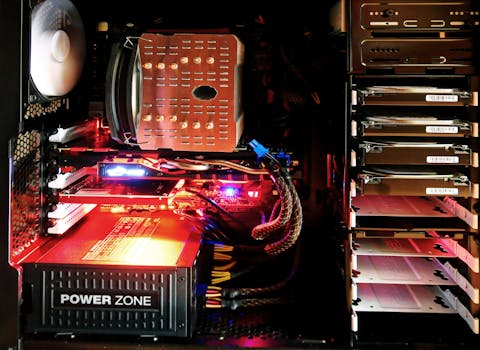 Photo: Pixabay / Pexels
 Photo: UMA media / Pexels
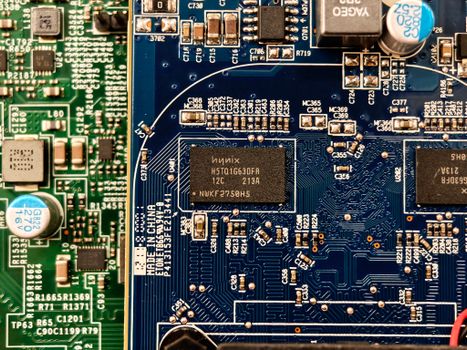 Photo: Adriano Ponte Abreu / Pexels
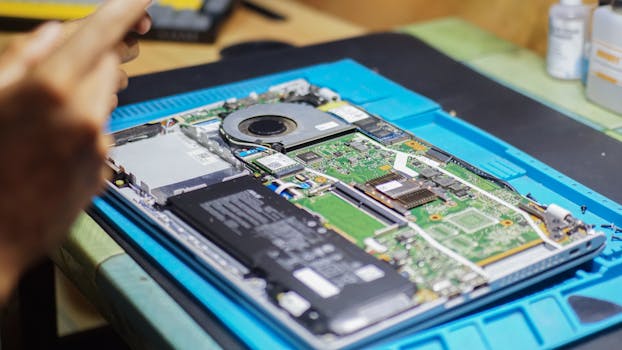 Photo: Found GHI / Pexels