What Are Solid State Drives? Your Guide to Blazing Fast Storage
what are solid state drives

What Are Solid State Drives? Your Guide to Blazing Fast Storage

Revolutionize your computing experience with the speed and efficiency of Solid State Drives.

Explore SSDs Now

Key Takeaways

  • ✓ SSDs use flash memory, not spinning platters, for data storage.
  • ✓ They offer significantly faster boot times and application loading compared to HDDs.
  • ✓ SSDs are more durable due to the absence of moving parts.
  • ✓ While historically more expensive, SSD prices have become increasingly affordable.

How It Works

1
Data Written to NAND Flash

When you save data, it's converted into electrical charges and stored in NAND flash memory cells. These cells retain data even without power.

2
Controller Manages Data Flow

A sophisticated controller chip acts as the SSD's brain, managing data read/write operations, error correction, and wear leveling across flash cells.

3
Data Retrieved Instantly

When you access data, the controller quickly locates the information in the flash cells. This direct electronic access eliminates mechanical delays.

4
Wear Leveling Optimizes Lifespan

The controller intelligently distributes writes evenly across all flash cells. This prevents any single cell from wearing out prematurely, extending the SSD's life.

Understanding the Fundamentals: What are Solid State Drives?
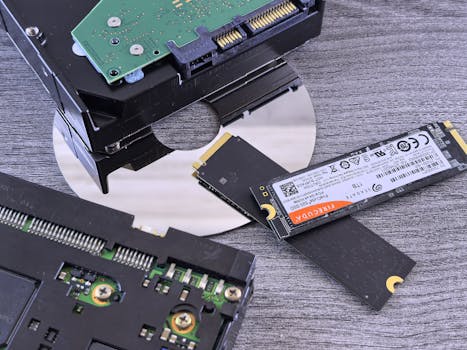
Contrasting data storage technologies: NVMe SSD, HDD, and CD. Photo: Andrey Matveev / Pexels
At its core, a Solid State Drive, or SSD, is a type of non-volatile storage device that stores persistent data on solid-state flash memory. Unlike traditional Hard Disk Drives (HDDs) which rely on spinning platters and read/write heads, SSDs have no moving parts. This fundamental difference is what gives SSDs their distinct advantages in terms of speed, durability, and power efficiency. Imagine your computer's brain needing to search through a physical library versus instantly accessing an online database – that's the kind of performance leap an SSD provides. The 'solid state' aspect refers to the use of semiconductors to store data, similar to the flash memory found in USB drives or smartphones, but on a much larger and more sophisticated scale. This technology has revolutionized computing, making everything from operating system boot-up times to application loading feel almost instantaneous. For anyone looking to upgrade their system or build a new one, understanding what are solid state drives is crucial, as they represent the modern standard for fast and reliable data storage. The impact of SSDs extends beyond just raw speed; their robust nature means data is less prone to damage from accidental drops or bumps, a common vulnerability for HDDs. Furthermore, the absence of mechanical components translates to silent operation and lower power consumption, contributing to longer battery life in laptops and cooler running systems overall. This makes them an ideal choice for a wide range of devices, from ultra-thin notebooks to high-performance gaming rigs and enterprise servers. The evolution of SSD technology has also seen various form factors emerge, from the classic 2.5-inch SATA drives to the compact M.2 NVMe sticks, each offering different levels of performance and compatibility. Exploring different types of computer storage reveals that SSDs stand out as the premier choice for primary drives where speed is paramount.

The Engineering Behind SSD Speed: Flash Memory and Controllers

From above of crop anonymous male in jeans demonstrating flash drive while sitting near laptop Photo: Anete Lusina / Pexels
The incredible speed of Solid State Drives isn't magic; it's a testament to sophisticated engineering, primarily centered around NAND flash memory and intelligent controllers. NAND flash memory is a type of non-volatile storage that retains data without power. It's organized into blocks and pages, with data written to pages and erased from blocks. There are different types of NAND flash, such as Single-Level Cell (SLC), Multi-Level Cell (MLC), Triple-Level Cell (TLC), and Quad-Level Cell (QLC), each storing one, two, three, or four bits per cell, respectively. SLC is the fastest and most durable but also the most expensive and lowest density. QLC, on the other hand, offers higher density and lower cost but has reduced endurance and speed. The choice of NAND type significantly impacts an SSD's performance, lifespan, and price point. Beyond the flash memory itself, the SSD controller is the unsung hero, acting as the brain of the drive. This complex piece of hardware manages a multitude of tasks: translating logical block addresses from the operating system to the physical addresses on the NAND flash, performing error correction, managing bad blocks, and, crucially, implementing wear leveling. Wear leveling algorithms distribute write and erase cycles evenly across all flash memory cells, preventing any single cell from wearing out prematurely. This intelligent management is vital because flash memory cells have a finite number of program/erase cycles. Without effective wear leveling, certain cells would fail much faster than others, leading to premature drive failure. The controller also handles garbage collection, which reclaims space from deleted data, and often includes DRAM cache to speed up mapping table lookups. The interface through which the SSD connects to the computer also plays a critical role in its perceived speed. While SATA (Serial ATA) has been the traditional interface for both HDDs and SSDs, offering speeds up to 600 MB/s, the emergence of NVMe (Non-Volatile Memory Express) has redefined performance. NVMe SSDs utilize the PCIe (Peripheral Component Interconnect Express) bus, which offers significantly higher bandwidth and lower latency, unlocking speeds many times faster than SATA SSDs. This combination of advanced NAND flash, intelligent controller algorithms, and high-speed interfaces is what makes what are solid state drives so incredibly fast and efficient for modern computing tasks.

Key Advantages of Solid State Drives Over Traditional HDDs
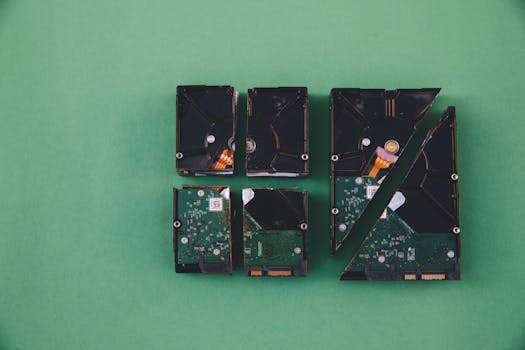
Four broken hard drives arranged on a green background, showcasing data destruction. Photo: Markus Spiske / Pexels
When considering storage solutions, the debate between Solid State Drives and Hard Disk Drives often comes down to a few critical performance metrics where SSDs unequivocally outperform their older counterparts. The most apparent advantage is speed. Because SSDs lack moving parts, they can access data almost instantaneously. This translates to significantly faster boot times for your operating system, quicker loading of applications, and rapid file transfers. Tasks that used to involve waiting for a spinning platter to locate data are now executed in milliseconds. For users, this means a dramatically more responsive and fluid computing experience, whether they are launching a demanding video game, editing large media files, or simply browsing the web. Another paramount benefit is durability. The mechanical nature of HDDs makes them susceptible to damage from drops, bumps, or even strong vibrations. A sudden impact can cause the read/write heads to crash into the platters, leading to data loss. SSDs, being solid-state devices, are inherently more robust and resistant to physical shock, making them ideal for laptops and other portable devices where accidental impacts are more likely. This enhanced durability translates to greater peace of mind for users who rely on their devices for critical data. Power efficiency is another area where what are solid state drives excel. Without motors to spin platters or heads to move, SSDs consume less power than HDDs. This lower power consumption contributes to longer battery life in laptops, a critical factor for mobile users. Furthermore, reduced power draw also means less heat generation, leading to cooler and quieter computer operation. The absence of mechanical noise is a significant comfort for many users, especially in quiet office environments or home setups. Lastly, while once prohibitively expensive, the price per gigabyte of SSDs has steadily decreased, making them more accessible to the average consumer. While HDDs still offer a lower cost per terabyte for mass storage, the performance benefits of SSDs often outweigh the price difference for the primary operating system and frequently used applications. For those looking to optimize their system, understanding the different storage options can help in making an informed decision, often leading to a hybrid approach with an SSD for the OS and an HDD for bulk storage.

Choosing the Right SSD: Tips and Common Mistakes to Avoid

A SanDisk SSD with USB accessories on a wooden desk, showcasing portable technology storage solutions. Photo: Avinash Kumar / Pexels
Selecting the right Solid State Drive for your needs can seem daunting with the myriad of options available. However, understanding a few key factors can simplify the process and ensure you get the best performance for your money. Here are some essential tips and common mistakes to avoid: **Tips for Choosing an SSD:** * **Identify Your Interface:** Check if your motherboard supports SATA or NVMe (M.2 PCIe). NVMe offers significantly faster speeds and is generally preferred for new builds or upgrades, but requires a compatible M.2 slot. * **Consider Capacity:** While SSDs are excellent for speed, they can still be more expensive per gigabyte than HDDs. Choose a capacity that balances your budget with your storage needs. A 500GB or 1TB SSD is a common sweet spot for an OS and essential applications. * **Research Controller and NAND Type:** While not always explicitly advertised, knowing if an SSD uses TLC or QLC NAND can give you an idea of its endurance and long-term performance. Reputable brands generally use quality components. * **Read Reviews:** Look for benchmarks and real-world performance reviews. Different SSDs, even within the same interface type, can have varying performance characteristics. * **Check for DRAM Cache:** SSDs with a DRAM cache often perform better, especially under sustained loads, as the cache helps the controller manage data mapping more efficiently. **Common Mistakes to Avoid:** * **Overpaying for Unnecessary Speed:** While NVMe is faster, if your primary use is basic browsing and word processing, a high-end NVMe drive might be overkill. A good SATA SSD can still provide a massive improvement over an HDD. * **Ignoring Compatibility:** Don't buy an M.2 NVMe drive if your motherboard only has SATA ports or an M.2 slot that only supports SATA. Always check your motherboard's specifications. * **Filling the Drive to Capacity:** SSDs tend to slow down significantly when they are nearly full. Aim to keep at least 15-20% of the drive free for optimal performance and wear leveling. * **Not Enabling TRIM:** Ensure TRIM is enabled in your operating system. TRIM helps the SSD manage deleted data and maintain performance over time. Most modern OSes enable it by default, but it's worth checking. * **Buying Unknown Brands:** Stick to reputable manufacturers like Samsung, Crucial, Western Digital, or Kingston. These brands often offer better reliability, warranties, and support.

Comparison

FeatureSSD (NVMe)SSD (SATA)HDD (7200 RPM)
Boot Time5-10 seconds10-20 seconds30-90 seconds
Max Read/Write SpeedUp to 7000 MB/sUp to 550 MB/sUp to 200 MB/s
DurabilityExcellentExcellentPoor (mechanical)
Noise LevelSilentSilentAudible
Power ConsumptionLowLowModerate
Cost per GBHighestMediumLowest

What Readers Say

"Upgrading to an SSD was the best decision for my old laptop. It now boots in seconds, and apps open instantly. I finally understand what are solid state drives and why everyone raves about them!"

Alex P. · Seattle, WA

"I replaced my gaming PC's HDD with a new NVMe SSD, and the difference is night and day. Load times in games are almost nonexistent, and my overall system responsiveness is incredible."

Maria G. · Austin, TX

"Our small business computers were sluggish. After installing SSDs, employee productivity jumped because they weren't waiting for programs to load. A significant return on investment, knowing what are solid state drives can do."

Ben K. · Miami, FL

"The speed is fantastic, though the initial cost was a bit higher than I expected for the capacity. Still, for my main drive where Windows and critical software live, it's absolutely worth it for the performance boost."

Chloe L. · Denver, CO

"As a video editor, render times and file transfers used to be a bottleneck. Switching to an external Thunderbolt SSD has drastically cut down my workflow time. It's amazing how much faster everything is."

David R. · New York, NY

Frequently Asked Questions

What are the main types of SSDs available?

The main types of SSDs are SATA, NVMe (M.2 and PCIe add-in cards), and mSATA. SATA SSDs are generally 2.5-inch drives, similar to laptop HDDs, offering good performance up to 600 MB/s. NVMe SSDs, typically in the M.2 form factor, connect via the PCIe bus, providing significantly higher speeds (thousands of MB/s) and lower latency. mSATA is an older, smaller form factor, less common today.

Are SSDs more reliable than HDDs?

Generally, yes. SSDs are inherently more reliable in terms of physical durability because they have no moving parts, making them resistant to shock and vibration. While they do have a finite number of write cycles, modern SSD controllers use wear-leveling algorithms to distribute writes evenly, ensuring a long lifespan that often exceeds the practical lifespan of an HDD.

How do I install an SSD in my computer?

Installing an SSD varies by type. A 2.5-inch SATA SSD typically involves connecting a SATA data cable and a SATA power cable to the drive and mounting it in an available drive bay. An M.2 NVMe SSD is usually installed by sliding it into a compatible M.2 slot on your motherboard and securing it with a small screw. Always refer to your motherboard and SSD manuals for specific instructions.

Why are SSDs still more expensive per gigabyte than HDDs?

SSDs are more expensive per gigabyte primarily due to the complex manufacturing process of NAND flash memory and the sophisticated controller chips required. While prices have dropped significantly over the years, the technology involved is still more costly to produce at scale compared to the mature and simpler mechanical design of HDDs, which benefit from decades of optimization.

Can I use both an SSD and an HDD in the same computer?

Absolutely, this is a very common and often recommended setup. Many users install their operating system and frequently used applications on a smaller, faster SSD for performance, and use a larger, more affordable HDD for bulk storage of documents, photos, videos, and less-used games. This hybrid approach offers the best of both worlds: speed and capacity.

Who benefits most from upgrading to an SSD?

Virtually anyone can benefit from an SSD, but those who will see the most significant improvements include gamers (faster load times), content creators (quicker file transfers and render speeds), professionals using demanding software, and anyone with an older computer still running on an HDD. Even casual users will notice a substantial boost in overall system responsiveness.

Do I need to 'defragment' an SSD like an HDD?

No, you should not defragment an SSD. Defragmentation is designed for HDDs to physically reorder data for faster access by the read/write heads. For SSDs, which access data electronically, defragmentation is unnecessary and can actually shorten the lifespan of the drive by performing excessive, unneeded write cycles on the flash memory cells. Modern operating systems typically recognize SSDs and disable defragmentation automatically.

What is the future of solid state drives?

The future of SSDs is bright, with continued advancements focusing on higher capacities, even greater speeds, and improved endurance. We can expect to see further reductions in cost, making them even more accessible. Technologies like QLC and PLC (Penta-Level Cell) NAND will increase density, while new interfaces and protocols beyond NVMe are being explored. Expect smaller form factors and integration into more devices, making computing faster and more efficient across the board.

Understanding what are solid state drives is the first step towards a significantly faster and more responsive computing experience. Whether you're upgrading an old system or building a new one, embracing SSD technology is a choice you won't regret. Make the switch today and feel the difference!

Topics: what are solid state drivesSSD technologycomputer storageflash memorydata storage solutions
Leo List

DK Escorts LU Escorts AT Escorts SE Escorts FI Escorts CH Escorts DE Escorts HR Escorts IE Escorts GR Escorts CZ Escorts NO Escorts BE Escorts FR Escorts SI Escorts IL Escorts NL Escorts PL Escorts HU Escorts ES Escorts IT Escorts PT Escorts SK Escorts RO Escorts ZA Escorts UY Escorts US Escorts UK Escorts NZ Escorts AU Escorts
Brampton weed
Adultwork EstrelaBet Vai de Bet R7 Bet Betão Galera Bet Rainbet Bet9ja Shop SportyBet BetKing Sisal Loto Foot Hollywoodbets YesPlay Odibets RushBet Jugabet BetWarrior BetCity MSport betPawa Fortebet